

You open the A/P Aging report before sending financials to your lender and see bills you know were paid months ago. One supplier appears under three names, an old credit is still sitting unused, and the total payable balance looks much higher than the checks you expect to write.
This is a common QuickBooks problem, but the fix isn't to delete everything old. A reliable cleanup starts by proving what each open item represents, then connecting payments, credits, and corrections to the original bill. That approach takes more care than forcing the aging report to zero, but it protects your expenses, cash records, vendor history, and audit trail.
Why Your QuickBooks Accounts Payable Got Messy
You open QuickBooks, glance at A/P, and the balance looks wrong. A bill you remember paying is still open, a card charge hit months ago, and the same vendor seems to exist under three slightly different names. That kind of mess usually starts with one simple break in the workflow. The bill, the payment, and the vendor record stop pointing to each other.
QuickBooks handles accounts payable as unpaid vendor bills. The bill and the bill payment are separate transactions, so the payable balance only clears when the payment is applied to the original bill, as QuickBooks explains in its accounts payable guidance. In a clean file, that logic works well. In a busy file, it falls apart fast when payments happen outside the normal bill-pay screen.
I see this all the time. A bill gets entered correctly, then someone pays it by credit card and records the charge as an expense. Later, the bank feed brings in the same payment and another user adds that too. Now QuickBooks may show one real bill, one or two payment-side entries, and no proper link between them. The file looks like you owe money you already paid, and expenses may be doubled at the same time.
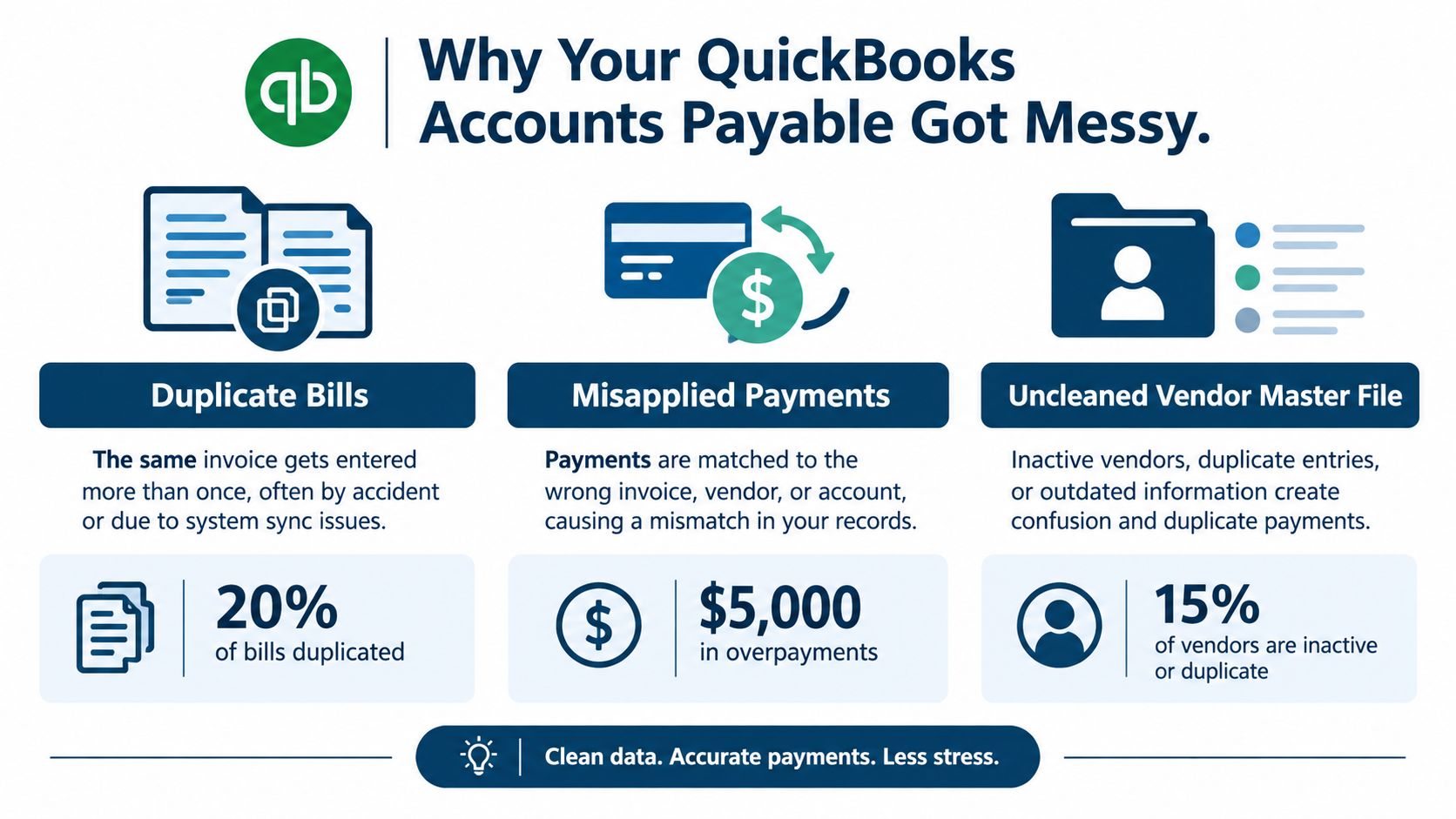
Vendor records add another layer. “Acme Supply Co,” “ACME Supply,” and “Acme Supplies” may all be the same company, but QuickBooks treats them as different vendors until someone merges or standardizes them. Credits can sit unused for months. Payments can be posted to the wrong vendor. Bills paid through bank bill pay or another outside service can stay open because the money left the bank without ever being matched back to the bill.
A normal report versus a distorted report
A normal A/P Aging report reflects what you owe by vendor and by date. A distorted report includes open items that do not line up with vendor statements, invoice files, bank activity, or the general ledger.
Warning signs are usually easy to spot:
- The same invoice number appears more than once.
- A vendor says an invoice is paid, but QuickBooks still shows it as open.
- One supplier appears under several nearly identical names.
- Old credits sit beside overdue bills from the same vendor.
- A bill amount matches a bank or card transaction, but no payment is linked.
Growth often makes these errors more frequent, especially when more than one person touches payables or new payment methods get added, according to the survey release.
The core task is to prove whether each open bill is valid before you edit anything. Once you know that, you can link outside payments, apply credits correctly, and remove actual duplicates without breaking the file's history.
Protect Your File Before You Touch Anything
Don't start by opening the oldest bill and deleting it. First, preserve a record of what QuickBooks says today. That snapshot gives you something to compare against when a correction changes the balance sheet or when a vendor questions an adjustment.
Export and save the Balance Sheet, Profit and Loss, Accounts Payable Aging, General Ledger, and Audit Log. Keep the reports with the date of export and preserve the original company-file state. If your system supports a backup, save it before making changes and store it where the person doing the cleanup can access it without overwriting the original.
Freeze the accounting period
Restrict posting access while the review is underway. If one person is fixing old bills while another person enters current invoices or applies payments, your reports can change in the middle of the work.
Set a closing date and password for completed periods. This won't replace good user permissions, but it adds a useful barrier against accidental edits to months that have already been reported, filed, or reviewed.
Practical rule: Treat the original file like a patient before surgery. Record its condition first, then make one controlled change at a time.
Deleting a bill can remove the connection between the vendor, expense, payment, and supporting documents. It can also distort historical expenses and make the Audit Log less useful. In most cases, the better fix is to apply the payment or vendor credit to the original bill, then use the appropriate void, refund, adjustment, or journal-entry workflow only when the facts support it.
The IRS recordkeeping guidance confirms that electronic records are subject to the same recordkeeping requirements as hard-copy books. Keep invoices, approvals, payment evidence, vendor statements, credit details, and notes explaining unusual corrections.
For broader protection against lost files and disrupted access, review guidance on backup and recovery for modern teams. Your accounting backup should be part of a wider recovery plan, not the only copy of your business records.
You should also document who can create vendors, enter bills, approve payments, and change transactions. These basic controls are covered in this resource on internal controls for small business. A clean file is easier to trust when the process behind it is controlled too.
Reading the A/P Aging Report Like a Detective
Run the A/P Aging Summary and start with the oldest and largest balances, but don't assume age proves anything. An item that has been open for a long time may be a real unpaid liability, a duplicate, a credit, a payment recorded elsewhere, or a disputed bill.
For material or aged balances, request the vendor statement. Compare it with the QuickBooks detail, invoice images, purchase orders or contracts, receiving evidence, and bank or card activity. The vendor statement often shows whether the supplier considers the balance open, paid, credited, or already resolved.
Put every item in one clear bucket
Create a review list and classify each open item before changing it. The classification matters because each category needs a different correction.
| What you see on the aging report | Most likely cause | Correct fix |
|---|---|---|
| An invoice appears on the vendor statement and remains unpaid | Genuine unpaid bill | Leave it open and schedule payment |
| A vendor confirms payment, but the bill remains open | Payment was recorded without linking it to the bill | Edit or recreate the payment so it applies to the bill |
| Two bills have matching support and similar details | Duplicate entry | Confirm the duplicate, then void or reverse it with documentation |
| A credit appears for a vendor with open bills | Unapplied vendor credit | Apply the credit through the vendor-credit workflow |
| The amount is disputed or lacks approval | Invoice dispute or incomplete support | Hold it, document the issue, and resolve it with the vendor |
| The balance should no longer be payable | Formal release or authorized adjustment | Obtain approval and use the correct open-period workflow |
A contractor once showed a supplier bill for $1,200 in the 90-plus-day column. The owner was ready to write it off because the supplier hadn't asked about it recently. A closer review found the bill had been entered twice, once under the supplier's normal name and once under a slightly different spelling. The right correction wasn't a write-off. It was to confirm the duplicate, preserve the valid invoice, and correct the extra entry.
Old doesn't mean invalid
Never write off an old bill solely because it's aged. A legitimate liability stays open until it's paid or formally released with documented authorization. UC Davis guidance on accounts-payable controls recommends comparing invoices with purchase orders, confirming that goods or services were received, and performing monthly operating-ledger reconciliations.
For each item, write a short note that answers three questions: what did you find, what support did you review, and what action did you take? That note helps the next bookkeeper understand why a payment was reapplied or why a duplicate was voided.
Finding and Fixing Duplicate and Misapplied Bills
A messy A/P file usually breaks in one specific place. The bill is real, the payment is real, but QuickBooks never connects the two. I see it all the time with credit card purchases, bank-feed expenses, and payments sent through an outside bill-pay service. The result is an open bill that looks overdue, even though the vendor was already paid.
Duplicate bills also hide in plain sight. One entry may have the right invoice number and the other a typo. The amount matches, but the vendor name differs slightly, or one bill uses the invoice date while the other uses the date it hit the inbox. Before you delete anything, confirm whether you are looking at a true duplicate, a misapplied payment, or a valid bill that still needs attention.
Clean vendor names first. Use the correct vendor record, merge or inactivate obvious duplicates based on your QuickBooks version, and stop new variations from creeping in. Then search for near-matches by vendor, invoice number, invoice date, amount, and payment reference.
Analysts cited in the AP cleanup benchmarking source report duplicate or erroneous payments as a recurring risk across A/P teams. That is a reason to slow down and verify each open bill, not to start wiping out old entries until the aging report looks cleaner.
Trace the payment path
For every suspicious open bill, follow the money before you touch the bill itself:
- QuickBooks Bill Pay: Open the bill payment and confirm it is linked to the right bill.
- Bank account: Find the cleared transaction and connect it to the bill instead of leaving it posted as a standalone expense.
- Credit card: Check whether the charge was entered directly after the bill was already recorded.
- Owner or employee payment: Determine whether the payment belongs in a reimbursement or liability workflow.
- External bill-pay system: Match the settlement record, then apply the payment inside QuickBooks.
A common example is office equipment bought on a card. The bill gets entered. Later, the credit card charge comes through the feed and someone books it as an expense because it looks faster. Now the expense may be doubled, and A/P still shows the bill as unpaid. Deleting the bill can understate what you owed at the time. Deleting the card transaction can erase the proof of how it was paid.
Review the invoice image, receiving support, approval trail, bank or card settlement, and vendor statement before voiding or reversing anything. If your team wants fewer manual touches, invoice processing with MakeAutomation can help organize intake, but it does not replace review.
Use journal entries carefully. A/P cleanups done with journal entries can create new problems when the vendor name, timing, or reversing entry is wrong. If you need one, read this guide to understanding journal entries first, and use it to support the actual transaction flow rather than forcing the vendor balance to zero.
Handling Vendor Credits and Refunds the Right Way
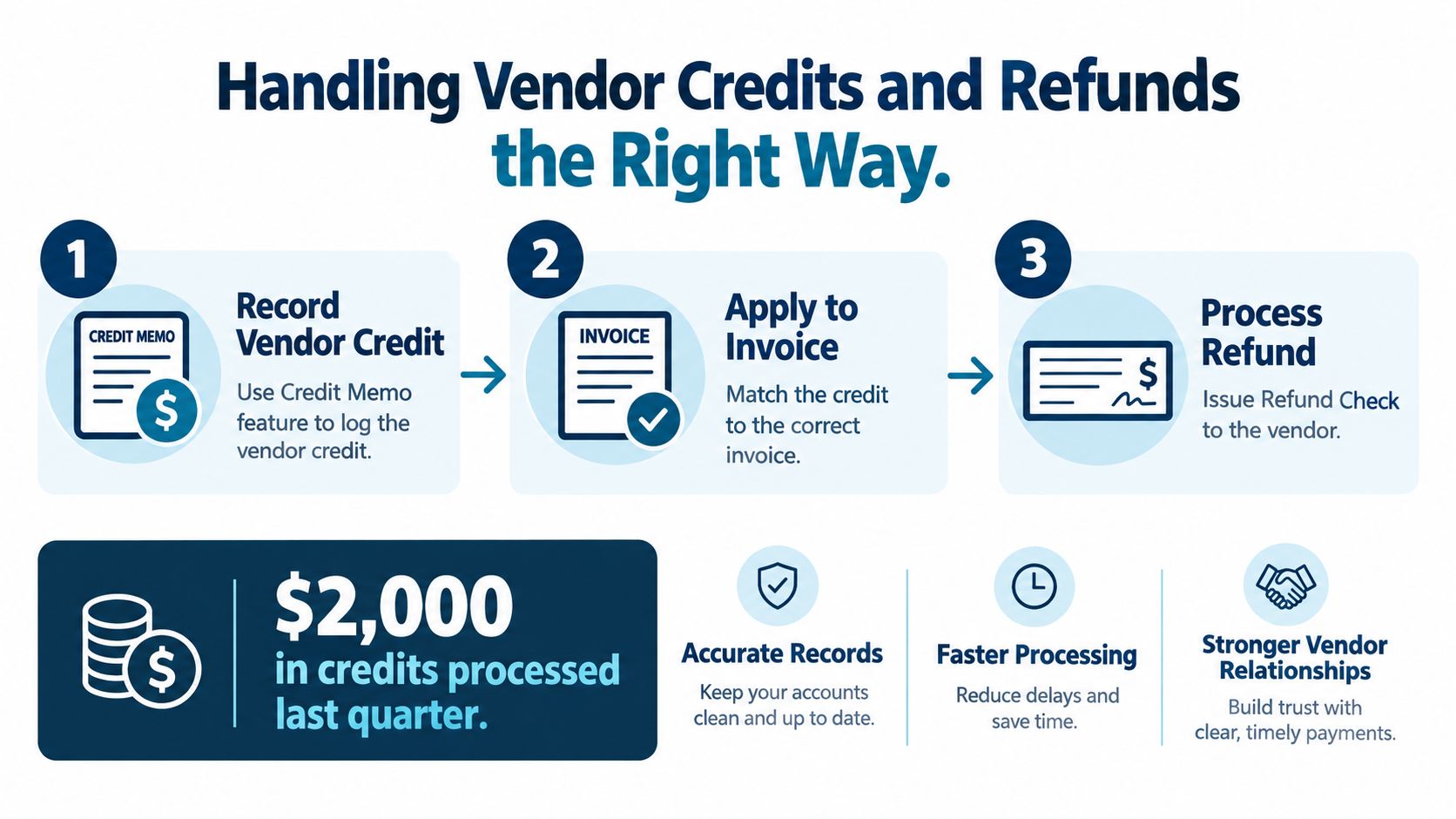
A vendor credit and a vendor refund are not the same event. A credit reduces what you owe that supplier. A refund sends money back to your bank. Recording one as the other can leave an unexplained credit, a false payable, or a bank balance that doesn't agree with the vendor record.
For a credit, select the correct vendor and enter the credit using details that match the original transaction. Don't delete it, and don't enter it as a negative bill. When you pay a bill from that vendor, check that QuickBooks applies the available credit to the correct invoice.
A credit reduces the next payment
Suppose a supplier issues a $300 credit for returned materials and you have a $1,000 open bill from that same supplier. Applying the credit leaves $700 to pay, as described in QuickBooks' vendor-credit instructions.
The credit should disappear from the available-credit list after you apply it. The bill should show the reduced amount, and the expense should not be duplicated. If the credit remains open, check whether it was entered under the wrong vendor, assigned to the wrong account, or applied to a different bill.
A refund uses another path. Record the money received as a bank deposit with Accounts Payable as the account receiving the funds. Then use Pay Bills to connect that deposit to the vendor credit. When entered correctly, the total payment can be $0.00 because the credit and deposit offset each other.
Watch for shortcut symptoms
Deleting a credit usually leaves the original purchase or return unsupported. Entering a negative bill can distort the aging detail and create a transaction that doesn't match the vendor's document. Recording only the refund deposit can leave an old vendor credit or open balance behind.
The right result is visible in three places: the bank account shows the money received, the vendor record shows the refund or credit was settled, and the A/P Aging report no longer carries an unexplained amount. Keep the vendor's credit memo, refund evidence, and a note describing how you connected them.
Keeping Your Accounts Payable Clean for Good
You finish a cleanup, the A/P Aging finally looks reasonable, and then three weeks later old problems are back. A bill got entered twice, a card payment cleared the bank but never got linked to the vendor, and someone created a new vendor profile instead of using the existing one. That is how messy A/P returns. Usually, it is not one big mistake. It is the same small process breaks happening every month.
The fix is a monthly routine that checks whether open bills are real before anyone starts deleting or writing things off. Review the A/P Aging Summary. Compare the A/P subledger to the general ledger control account. Flag anything old, unusual, or unsupported.
Keep the review practical:
- Review open bills: Confirm each aged item still has an invoice, statement, approval, or documented dispute behind it.
- Check unapplied activity: Look for payments, credits, and bank or credit card transactions that should be tied to existing bills.
- Standardize vendors: Use one approved vendor record and consistent invoice naming so duplicates are easier to catch.
- Match before approval: Compare the bill to the purchase order, contract, receipt, or other backup when that step fits your workflow.
- Save the trail: Keep the invoice, approval, payment proof, and adjustment note together.
Payment controls matter too. Verify vendor bank detail changes through a separate contact method. Require a second look on unusual or rushed payments, especially requests sent by email. If your team is large enough, separate vendor setup from payment approval and release.
Use a written bookkeeping cleanup checklist so the close does not depend on memory. The goal is simple. Every open payable should tie to a real obligation, and every payment made outside QuickBooks should get linked back instead of leaving a false balance behind.
A steady process keeps cash forecasts cleaner, vendor records easier to trust, and month-end work much lighter than the original cleanup.
MyOfficeOps provides bookkeeping support that includes accounts-payable processing, bill payment, bank and credit-account reconciliation, and organizing overdue QuickBooks records. Visit MyOfficeOps to discuss a cleanup plan and ongoing accounting support for your business.