
Tracking Business Expenses In Real Time
Write down each purchase right after you make it, and then add up your expenses each week. This small habit helps you avoid surprises and keeps your budget on track.
Understanding Expense Tracking Basics
When you record expenses as you go, you get clear data for decisions. Think of a marketing agency owner who snaps a photo of each receipt at a client lunch and then spends ten minutes each Friday sorting and adding them up.
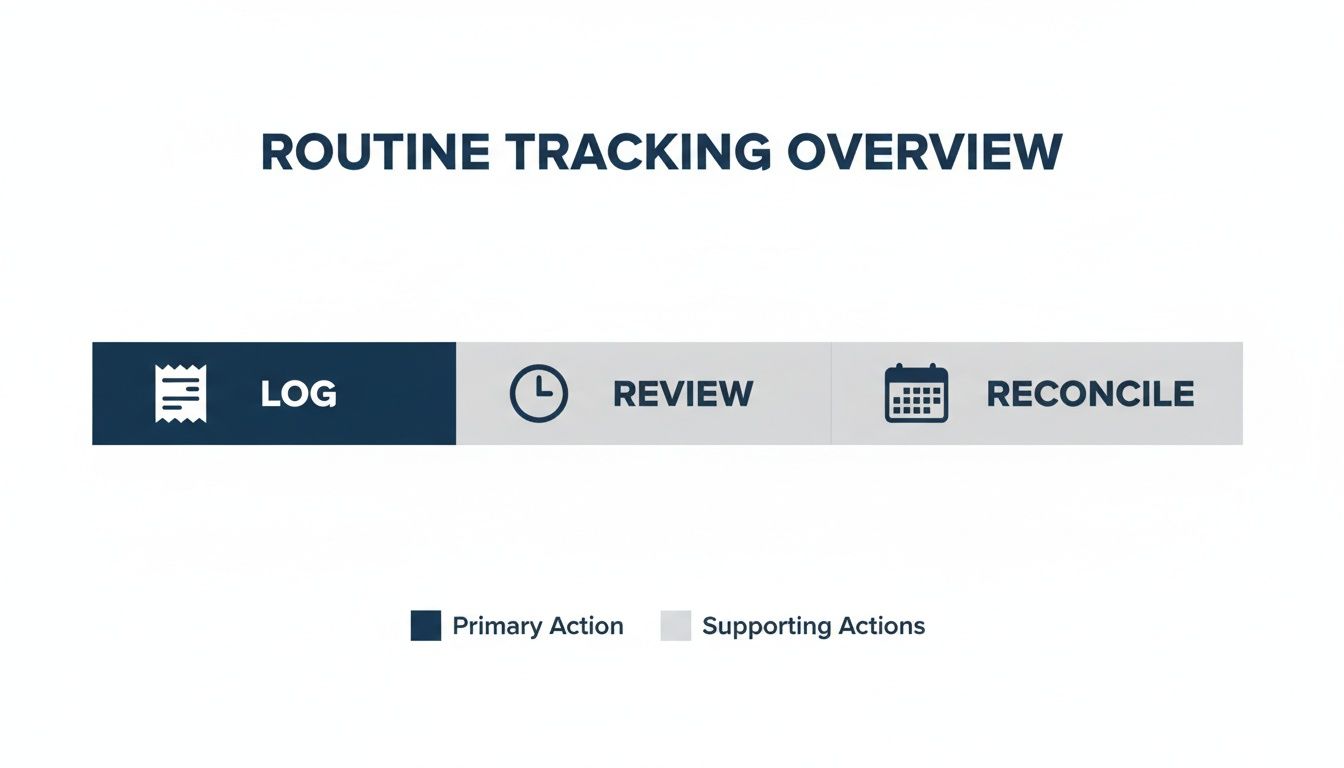
- Log expenses right away in your app or spreadsheet to avoid backlogs.
- Review weekly to spot any odd charges in just a few minutes.
- Reconcile monthly by matching your records to bank and credit card statements.
Why Real-Time Logging Matters
Recording an expense when it happens keeps receipts organized. Month-end doesn’t feel like a mountain of paper anymore.
I know a small studio that, after three months of logging, reviewing, and reconciling, cut its errors by 50%. Tracking became a five-minute task instead of an all-day chore.
Manual Versus Automated Expense Tracking
Manual Versus Automated Expense Tracking
| Feature | Manual Process | Automated Process |
|---|---|---|
| Data Entry | Hand-enter receipts and amounts | OCR scanning and auto-fill |
| Receipt Storage | Paper files or spreadsheets | Cloud storage with search |
| Approval Workflow | Email threads or paper approvals | In-app routing and policy checks |
| Error Rate | 5–10% misentries due to manual typing | <1% errors with validation rules |
Whether you use a filing cabinet or a mobile app, know the differences so you can pick what works.
Travel and entertainment are often the biggest variable costs. Global business travel spend was about $1.48 trillion in 2024 and may keep rising. See the data on business travel statistics.
Check out our guide on small business bookkeeping basics to lay a good foundation.
Leveraging Monthly Summaries For Strategy
Monthly summaries do more than add up dollars. They show spending trends and flag odd expenses so you can adjust budgets where it matters.
- Track each category over time to see patterns.
- Spot one-off expenses before they get big.
- Share simple reports with your team so everyone knows what’s happening.
I once saw a retailer use monthly summaries to move money from an underused meals budget to cover extra shipping costs—and they stayed on budget.
Regularly logging and reviewing expenses keeps your books accurate and saves hours at month-end.
Choosing The Best Expense Tracking Tools
The right tool can make expense tracking almost automatic. I’ve worked with small businesses that wrestled with piles of receipts until they found software that cut their month-end work in half.
Take one graphic design studio I know: they tested three platforms over six weeks. When they picked a tool with instant OCR and automatic card feeds, they cut their reconciliation time in half.
The dashboard shows spend by category and flags policy alerts as they happen.
Feature Comparison Of Top Expense Tools
| Tool | Mobile Capture | Card Integration | Policy Engine | Monthly Cost |
|---|---|---|---|---|
| QuickBooks Online | Yes | Yes | Limited | $30+ |
| Expensify | Yes | Yes | Yes | $5/user |
| Spreadsheet | No | No | No | $0 |
Platforms usually speed up reconciliation by 40–70% and cut manual errors a lot.
Learn more in the expense trends report.
Tips For Choosing Your Tool
• Think about Team Size and Budget
Small teams may like Expensify’s low per-user fee, while larger ones can bundle tracking with QuickBooks Online.
• Look for Good Capture and OCR
If you scan many receipts, pick strong mobile capture and auto-scan features.
• Check Integrations
Does it connect to your payroll or bank software? A tool that fits with what you already use saves time.
• Plan for Growth
Pick a solution that can grow with your business so you don’t change systems later.
“Choose a tool that handles both receipt capture and policy checks. That combo alone can eliminate many manual steps.”
Real World Example
A 20-person consulting team I know switched from spreadsheets to QuickBooks Online. They cut two days off their monthly close and saved dozens of hours each quarter.
They chose QuickBooks because:
- It scales as the team grows.
- It handles policy rules well.
- It connects to other systems easily.
Testing free trials helped them pick the best fit.
Setting Up Categories And Policies
After you pick a tool, the next step is to set categories and rules. Clear tags and policies guide employees and speed approvals.
Imagine a mid-sized firm that set per-diem meal limits and built a one-click approval flow. Employees pick “Travel Meals,” click Approve, and the expense moves on—no back-and-forth emails.
Naming Conventions For Expenses
Using the same labels keeps your reports tidy:
- Travel and Lodging: Flights, trains, or hotels
- Meals: Client lunches, dinners, or snacks
- Supplies: Office gear like pens or printer toner
- Mileage: Business driving at the IRS rate or your rate
Defining Policy Rules
Rules help the system approve or flag expenses. A clear policy cuts down emails and mistakes.
For example, meals over $50 ping a manager for review.
- Create an exceptions list for special cases (like conferences).
- Set up approval groups so managers only see flagged items.
- Send automatic notifications when limits are exceeded.
“A clear policy reduces back-and-forth and enforces compliance automatically.”
Linking Categories To Accounts
Connect each category to your general ledger so expenses post correctly.
Learn more on What Is A Chart Of Accounts.
| Category | General Ledger Account |
|---|---|
| Travel | Travel Expenses Account |
| Meals | Entertainment Expense |
| Supplies | Office Supplies Expense |
| Mileage | Vehicle Reimbursement |
This mapping cuts coding errors and speeds up month-end.
Handling Special Event Exceptions
For events like conferences, set a special category and higher limits.
E.g., a $100 meal cap for the annual retreat tagged “Conference Meals.”
This way, real costs don’t trigger default rules.
Capturing Receipts And Submitting Expenses

Taking a photo and clicking “submit” saves hours of typing. A sales team I helped used mobile capture and cut missing receipts from 30% to zero in four weeks.
Try these steps:
- Use consistent file names:
YYYY-MM-DD_ClientName_Amount - Turn on OCR auto-fill to avoid typos
- Send reminders so no receipt is left unsubmitted over 48 hours
Approval Workflow
When receipts arrive, finance reviews and pays:
• Flag items over policy limits.
• Check amounts and business purpose.
• Send reimbursements to payroll or accounts-payable.
• Post payments to the ledger automatically.
Automating routing and logging can cut reimbursement cycles by 50%.
Mobile Capture Efficiency
One client added custom dropdowns—ProjectID, ClientName, ExpenseType—to her app. Tagging each receipt in real time cut her sorting time by 60%.
Include these fields:
- ProjectID: Pick from active projects.
- ClientName: Select the customer.
- ExpenseType: Choose travel, meals, or supplies.
Set up a Slack reminder every Monday so nobody forgets to scan receipts.
“Mobile tagging with custom fields transformed our process,” says David, CFO at Apex Consulting.
Submission Tips
A clear naming guide helps everyone stay on track:
| Convention | Example |
|---|---|
| Date_Client_Amount | 2024-05-14_AcmeCorp_275.00 |
| Category_Project_Code | Meals_ProjectX_45.20 |
Use JPEG or PDF only and limit files to 5MB to avoid errors. Add push alerts so reps don’t fall behind.
Connecting To Accounting
Link your tool to bank feeds for easy updates:
- Turn on real-time bank sync for card transactions.
- Map categories to ledger accounts for auto-coding.
Integrating expenses with accounting cuts reconciliation time by 40%.
Reconciling Accounts And Integrating Systems
Link your tracker to live bank and credit-card feeds to wrap up month-end fast. Transactions flow in automatically, and most match rules handle the rest.
In MyOfficeOps you can connect accounts in minutes. After that, imports run daily and flag new items.
- Instant imports refresh every hour.
- Auto-matching pairs charges with your expense entries.
- Alerts show anything that needs your attention.
Linking Bank Feeds For Automatic Imports
Go to Integration Settings, pick your bank, and sign in. The platform builds a secure link, and you won’t need manual downloads again.
One small retail team linked three cards and two accounts in under five minutes. Next day, they saw transactions flow in and cut reconciliation time by 70%.
Handling Exceptions And Small Discrepancies
Every system has snags—missing receipts or tiny mismatches. Set rules to handle small issues and flag the rest.
| Exception Type | Action |
|---|---|
| Unmatched Amounts < $1 | Auto-write off as rounding diff |
| Missing Receipt | Send reminder to submit photo |
| Duplicate Charges | Flag and attach audit notes |
| Foreign Currency Fees | Assign to FX variance account |
Automatic workflows can cut your cleanup work in half.
Syncing With Payroll And Accounting
Export your expense data in CSV or JSON and map fields to your ledger. Schedule daily or weekly uploads and test with sample data first.
Once set up, reimbursements and charges post themselves and you close books faster.
Generating Monthly Reports And Avoiding Mistakes
A dashboard that tracks category spend, policy compliance, and outliers helps you spot problems early.
Think of Maya, a finance manager at a startup who saw meal expenses spike 35% right before a hackathon. She moved extra funds to pay for new equipment and stayed on budget.
Setting Up Dashboards For Category Spend
Use a dashboard that shows travel, meals, and supplies side by side. Add filters for teams or projects to catch jumps fast.
Automating Alerts And Exports
Set up alerts so you don’t have to watch charts:
- Email you when a category hits 80% of its budget.
- Flag rule breaches.
- Send scheduled exports at month-end.
Pick a date, format (CSV or PDF), and add your distribution list. Now reports land in inboxes automatically.
Spotting And Fixing Common Pitfalls
Watch for duplicates and missing receipts—weekly checks catch them early. Lax approvals lead to policy breaks, so use reminders and one-click reviews.
| Pitfall | Solution |
|---|---|
| Duplicate entries | Auto-detect and merge rules |
| Missing receipts | Push reminders and firm deadlines |
| Lax approvals | Timed approval queues |
Consistent monthly reporting is your safety net. It catches errors before they become crises.
To see how expenses tie into profits, check out our guide on profit and loss statements.
Distributing Reports To Leadership
Send a one-page summary with visuals and top highlights. Cover:
- Major variances and causes.
- Cost-saving ideas.
- Next steps.
Use green for under-budget and red for overshoots—this helps leaders understand quickly.
Visual summaries cut review time by 60%, according to finance teams I’ve worked with.
FAQ
Tracking expenses shouldn’t be hard. Here are quick answers to common questions.
Q: What’s the easiest way to track business expenses?
A mobile app with OCR and card feeds can save time. Imagine snapping every receipt and spending five minutes each Friday to review. That habit keeps your books tidy all week.
Q: How do I handle cash expenses?
Use a petty cash log or envelopes. Snap a photo of each receipt, enter amounts in your tool, then balance the log at month-end. Color-code your folders or envelopes to find things fast.
- Store receipts by date or category.
- Update your log within 48 hours.
- Review weekly.
A quick cash log with photos cuts missing receipts by over 90%.
Common Expense Tracking Questions
Q: Can I track expenses without specialized software?
Yes. A shared spreadsheet and scanned receipts folder can work for a while. But manual entry takes more time and can lead to errors.
Q: How do I integrate expense data with my accounting system?
Pick a tool that exports CSV or offers an API. Map fields to your ledger and set up an automated sync so charges flow in without extra steps.
- Map your expense fields to ledger accounts.
- Schedule exports daily or weekly.
- Test the sync with sample data first.
Integrating expenses with accounting cuts reconciliation time by 40%.
Our team is here to help. Let’s keep your books clean and your finances clear.
Ready to simplify expense tracking and save more time? Partner with MyOfficeOps for mobile capture, automated reconciliation, and expert support. Visit MyOfficeOps to get started.