
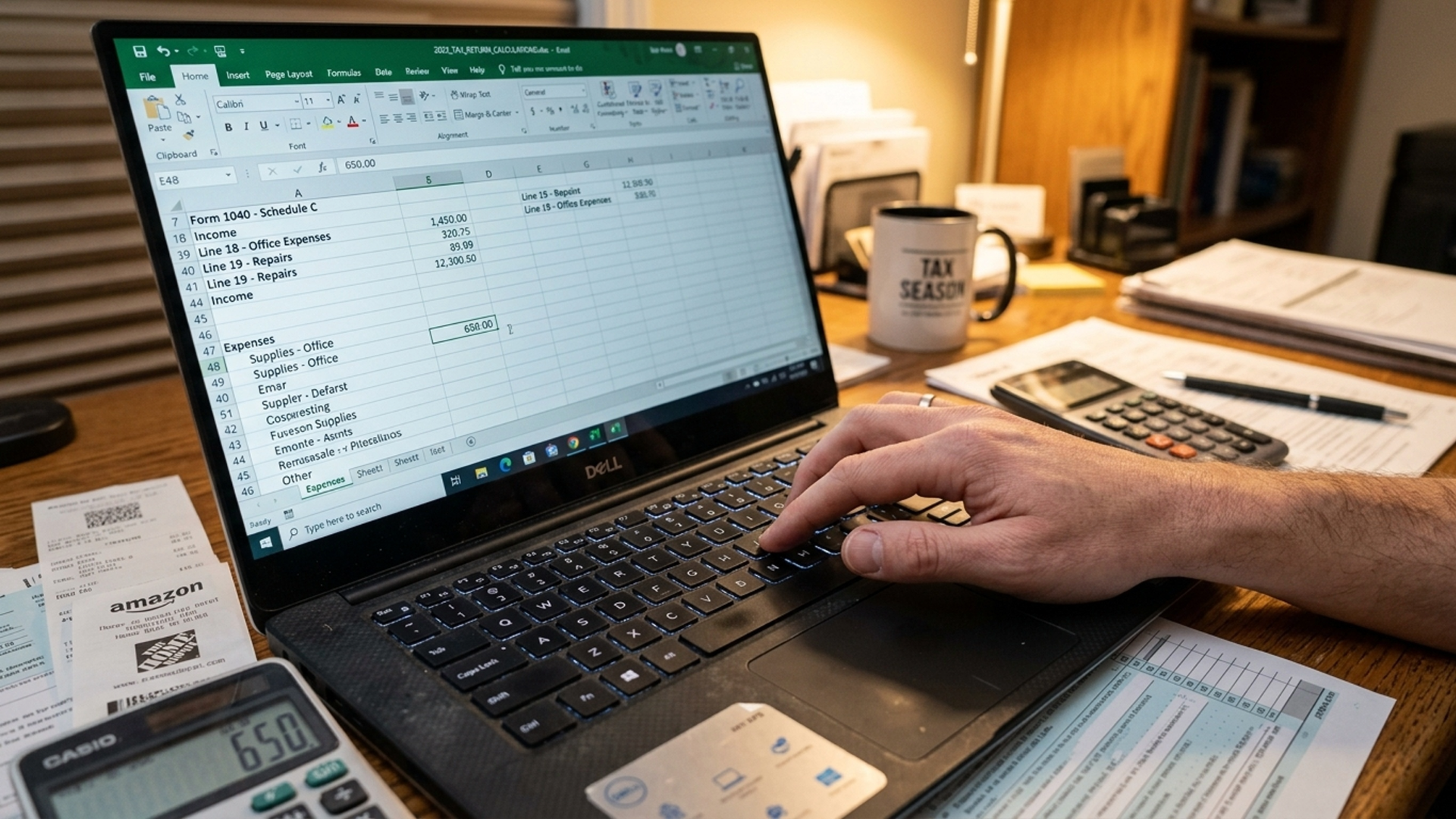
You've just opened a new Excel file, typed “Income” and “Expenses” into two columns, and wondered whether this is a sensible way to keep the books. Maybe your contractor sent an invoice, a customer paid through a processor, and the bank balance doesn't match what you expected. The spreadsheet looks simple. The business isn't.
Excel can still work. The difference between a useful bookkeeping file and a dangerous one is the design around it. You need complete transaction records, clear categories, supporting documents, regular reconciliation, and a file another person can understand.
Why Excel Can Work When You Build It on Purpose
An owner of a small West Chester service business once showed me a workbook with one tab called “Bookkeeping.” Every payment, receipt, transfer, owner draw, and customer deposit sat in one long list. The owner knew the file was messy, but assumed the only alternative was an expensive accounting platform.
The problem wasn't Excel. It was the lack of a bookkeeping system. A spreadsheet can serve as a flexible ledger when you build it around the same basic principles as any accounting process: capture every transaction, classify income and expenses consistently, keep the receipt or invoice that supports each entry, and make the records easy to retrieve.
The IRS recordkeeping guidance doesn't require small businesses to use a particular bookkeeping format. Owners can choose any system that clearly shows business income and expenses. The IRS generally suggests retaining business records for 3 years, while employment-tax records should generally be kept for at least 4 years. Electronic records must also provide a complete and accurate record that's accessible if requested.
That gives you room to use Excel, but it doesn't give you permission to keep a file nobody can explain.
Practical rule: Excel is acceptable when the records are defensible, not merely familiar.
A sound workbook has a transaction table, a chart of accounts, customer and vendor records, invoice and bill tracking, payroll-related payments, and bank reconciliation tabs. Reports should calculate from the transaction data. They shouldn't be typed over at the end of each month.
The trade-off is straightforward. Excel gives you flexibility, low setup friction, and control over the layout. You also have to create the controls yourself. There's no automatic safeguard against deleting a row, changing a formula, or saving three conflicting versions.
Use Excel as the books when the business has a manageable level of complexity and someone will maintain the process. Don't use it as a temporary dumping ground while hoping the numbers will become organized later. A clean ledger built today is much easier to hand to a tax preparer or bookkeeping professional than a pile of disconnected tabs.
Setting Up the Chart of Accounts and Workbook Structure
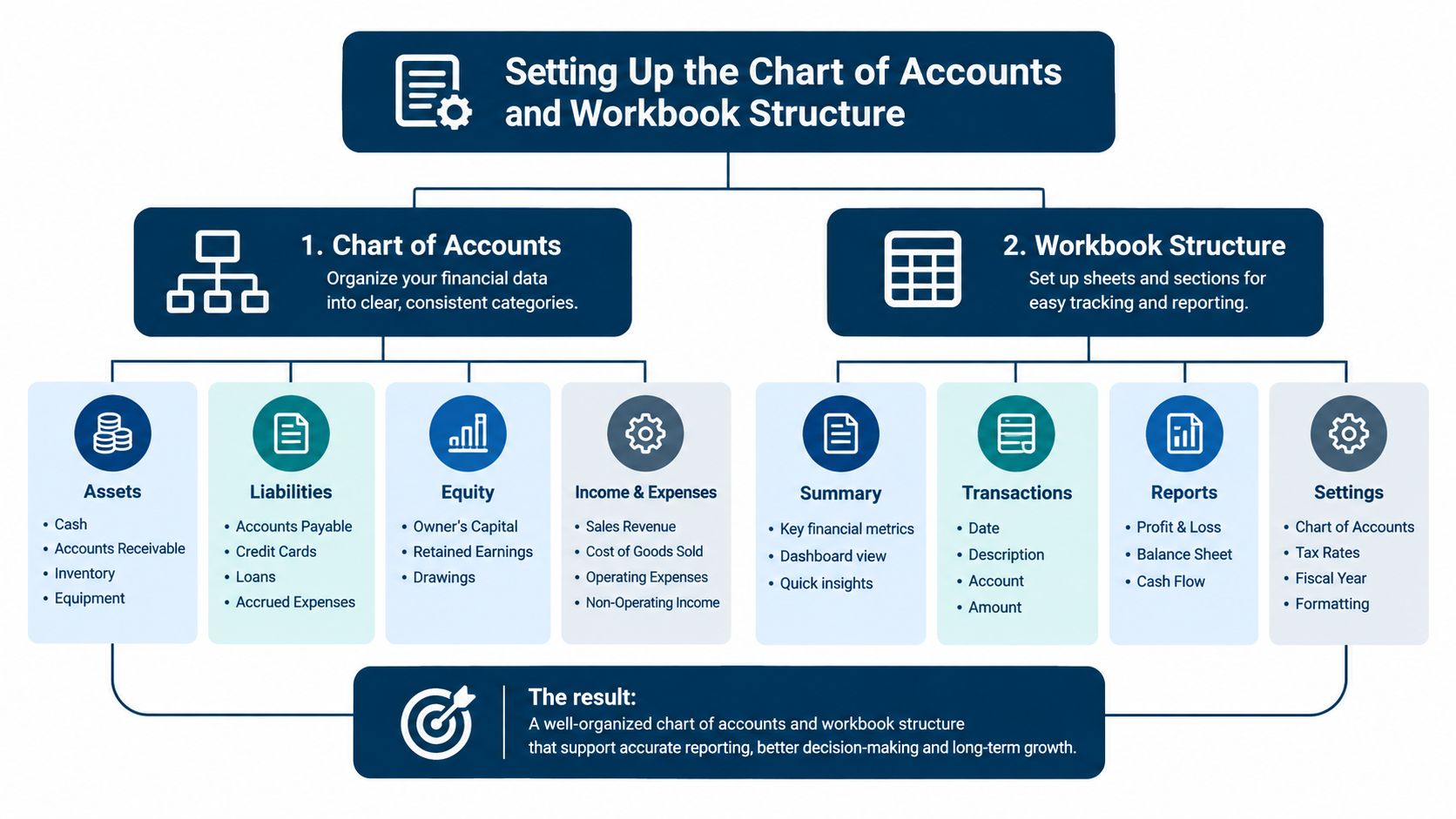
Start with the chart of accounts. This is the list that tells Excel what each transaction means. A web contractor may need service revenue, subcontractor labor, software, advertising, insurance, owner draws, bank fees, and sales tax payable. A trades business may also need materials, equipment, vehicle costs, and job-related costs.
You can use this chart of accounts explanation if you want a plain-language reference. Keep the list short enough that you'll use it consistently. Ten clear expense categories are better than thirty categories that overlap.
Create separate Excel sheets, or separate Excel Tables, for these areas:
- Transactions: The main ledger for every payment, deposit, transfer, bill, and adjustment.
- Chart of Accounts: Account code, account name, account type, and notes about what belongs there.
- Customers and Vendors: Names, contact details, payment terms, and tax-related information you need to retrieve.
- Invoices and Bills: Invoice number, customer or vendor, date, amount, due date, and payment status.
- Payroll Payments: Payment date, employee or payroll provider, gross or net reference, and source document.
- Bank Accounts: Account name, statement period, beginning balance, ending balance, and reconciliation status.
Each transaction should have a unique ID. Add the date, description, amount, account category, payment method, and a receipt, invoice, or bank-export reference. If you use project accounting, include a project or job column. If you collect sales tax, include a tax treatment column rather than burying the detail in the description.
The starter structure below works well for a service business or small trade:
| Account Code | Account Name | Type | Example Transaction |
|---|---|---|---|
| 4000 | Service Revenue | Income | Customer payment for completed work |
| 4100 | Product Sales | Income | Sale of materials or products |
| 5000 | Cost of Goods Sold | Expense | Materials used on a customer job |
| 5100 | Subcontractor Labor | Expense | Payment to an independent contractor |
| 6000 | Software and Subscriptions | Expense | Business software payment |
| 6100 | Insurance | Expense | General liability premium |
| 6200 | Bank Fees | Expense | Monthly account fee |
| 3000 | Owner Draws | Equity | Personal withdrawal by the owner |
| 2200 | Sales Tax Payable | Liability | Tax collected and owed |
Spreadsheet errors can distort bookkeeping and management decisions. A widely cited industry summary reports that up to 88% of spreadsheets contain errors, and 35% of companies reported discrepancies in their most important spreadsheets. These figures aren't a government estimate of all Excel workbooks, but they show why a bookkeeping file needs engineering, not just formulas. The figures come from this industry summary of spreadsheet error risk.
Finally, convert each range into an Excel Table. Select the data, choose Insert, then Table. New rows will carry formulas and structured references forward, which removes one common source of broken reports.
Daily Entry Habits and the Formulas That Run the Reports
The daily routine should be boring. That's a good sign.
Open the Transactions table and add one row for each event. Don't insert totals between transactions. Don't type directly into the monthly profit-and-loss report. Enter the source data once, then let the reports summarize it.
Use Data Validation on the account category column. Create a dropdown that pulls from the Chart of Accounts. This prevents “Office Supplies,” “Office supply,” and “Office supplies” from becoming three different categories that Excel treats separately.
For a small sample, your transaction table might look like this:
| Date | Description | Account | Amount | Payment Method |
|---|---|---|---|---|
| Jan 3 | Client retainer | Service Revenue | 2400 | Bank transfer |
| Jan 4 | Web hosting | Software and Subscriptions | 85 | Card |
| Jan 5 | Lumber for project | Cost of Goods Sold | 310 | Card |
The report sheet can use SUMIFS to total a category for a period. In plain language, the formula asks Excel to add amounts where the category matches and the date falls inside the chosen month. A typical formula might look like:
=SUMIFS(Transactions[Amount],Transactions[Account],"Software and Subscriptions",Transactions[Date],">="&StartDate,Transactions[Date],"<="&EndDate)
You can use COUNTIFS to count unpaid invoices, blank categories, or transactions within a date range. IF can flag missing references or mark an invoice as overdue. A PivotTable can summarize the same data by month, customer, project, or account without copying transactions into several reports.
Microsoft's guidance on using Excel Tables and PivotTables for business analysis supports this approach. Build one controlled ledger, then calculate the profit-and-loss, cash summary, accounts-receivable, and expense views from it.

A useful daily checklist is short:
- Enter the transaction: Record the date, payee or customer, amount, category, payment method, and reference.
- Save the proof: Store the receipt, invoice, or bank export using a name that matches the reference in Excel.
- Check the row: Confirm the amount sign, account, and date before moving on.
- Leave reports alone: Don't edit calculated cells to force a result.
If you want ready-made layouts for the reporting side, these financial reporting templates can help you compare report structures before building your own.
Running a Month-End Close and Bank Reconciliation
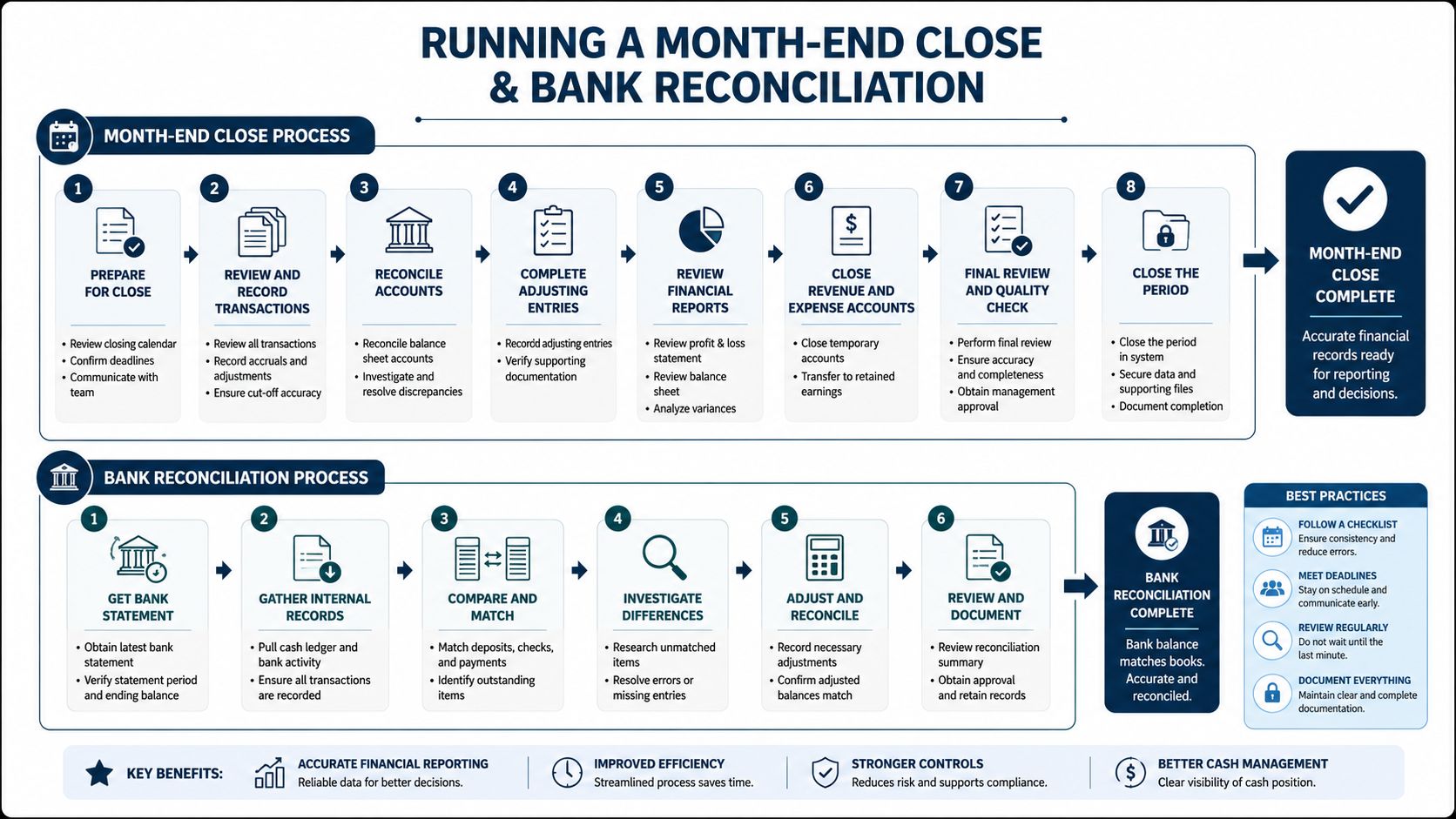
A month-end close turns a list of entries into numbers you can use. Without it, the workbook may look current while still containing duplicates, missing charges, or transactions from the wrong period.
Use the same checklist every month.
- Import or paste the bank activity into a separate Raw_Data table. Keep the original export unchanged.
- Add missing transactions to the controlled Transactions table. Don't report directly from the bank export.
- Run the duplicate ID check. Every transaction ID should be unique.
- Run the blank-category check. Filter for rows with no account, amount, date, or source reference.
- Run the date check. Find transactions outside the reporting period.
- Compare the ledger to the bank statement. Match deposits, withdrawals, fees, transfers, and card payments.
- Investigate unreconciled balances. Look for timing differences, duplicate entries, missed entries, or incorrect amounts.
- Archive the month. Save a dated, read-only copy with the statement, receipts, invoices, and reconciliation sign-off.
The month-end close guidance can give you a fuller checklist to adapt. Keep the reconciliation page simple. Show the statement ending balance, add or subtract identified timing items, show the adjusted balance, and compare it with the Excel ledger balance. The two final balances should agree.
A bank transfer between two business accounts is a common trap. If you record it as income in one account and an expense in the other, the cash total may look active while profit is wrong. Classify it as a transfer, then make sure both sides appear once in the appropriate bank accounts.
A useful operating benchmark is to complete the close within 5 to 10 business days, reconcile 100% of bank accounts, and resolve all material exceptions before distributing management reports, as described in the NIST control framework. That's a management target, not a universal regulatory deadline.
A small difference may be timing. A difference you can't explain is not timing just because it's inconvenient. Write down the reason, attach the supporting document, and carry it forward only when you know what it represents.
Common Pitfalls and the Habits That Prevent Them
Most broken workbooks don't fail in one dramatic moment. They drift. Someone changes a sign convention, deletes a row, saves a new copy, and moves on. A few months later, the owner can't say which version is correct.
The first problem is mixed signs. If income is positive in one tab and negative in another, your totals will be wrong even when every transaction is present. Choose a convention, document it on the Instructions sheet, and apply it everywhere.
The second is overwriting history. An owner may replace an old amount with a corrected amount and lose the original entry. Use an append-only Raw_Data table. Add an adjustment row with a note instead of erasing the earlier record.
Four controls worth adding tonight
- Protect formulas: Lock report cells and formula columns. Leave only input columns editable.
- Use one live file: Pick a naming convention such as
Business_Bookkeeping_Current.xlsx, then store dated archives separately. - Keep a change log: Record the date, person, adjustment, reason, and affected period.
- Separate source data: Keep bank imports, invoices, receipts, payroll reports, and calculated reports in their proper places.
A formula can break without warning when somebody deletes a row or pastes over a Table column. Excel Tables reduce that risk because formulas and structured references expand with new rows, but protection and review still matter.
The IRS says electronic records should provide a complete, accurate, accessible record. Its guidance on recording business transactions makes the larger point clear: the workbook is only part of the record. Keep original bank exports and supporting documents alongside it.
A workbook with formulas isn't automatically an audit trail. The trail includes the original evidence, the version history, and the explanation for each adjustment.
One file on a laptop, another in an email attachment, and a third on a bookkeeper's computer creates competing books. Cloud storage can help, but it doesn't replace a clear owner, access rules, backups, and a close process.
When Excel Stops Being the Right Tool
Excel usually stops being the right system of record because of complexity, not because the file reaches some magical size.
Ask yourself whether the business now has:
- Multiple bank or credit-card accounts: You spend more time matching accounts than reviewing results.
- Payroll complexity: Payroll reports, taxes, benefits, and payment records no longer fit a simple cash list.
- Inventory or job costing: You need reliable material usage, work-in-progress, or project profitability.
- Multiple users: More than one person edits the file and version conflicts become normal.
- Weak reconciliation: Differences remain open because nobody has time to investigate them.
- A delayed close: The books aren't ready when you need to make pricing, hiring, or cash decisions.
- A difficult handoff: Your accountant has to rebuild the numbers before preparing reports or taxes.
A survey cited by QuickBooks found that 53% of surveyed small businesses use spreadsheets for financial management, while 31% also use pen and paper. The same source says dedicated accounting software ranks as the most useful digital tool among surveyed businesses for efficiency, time savings, and fewer errors. See the small business financial management findings for the source and context.
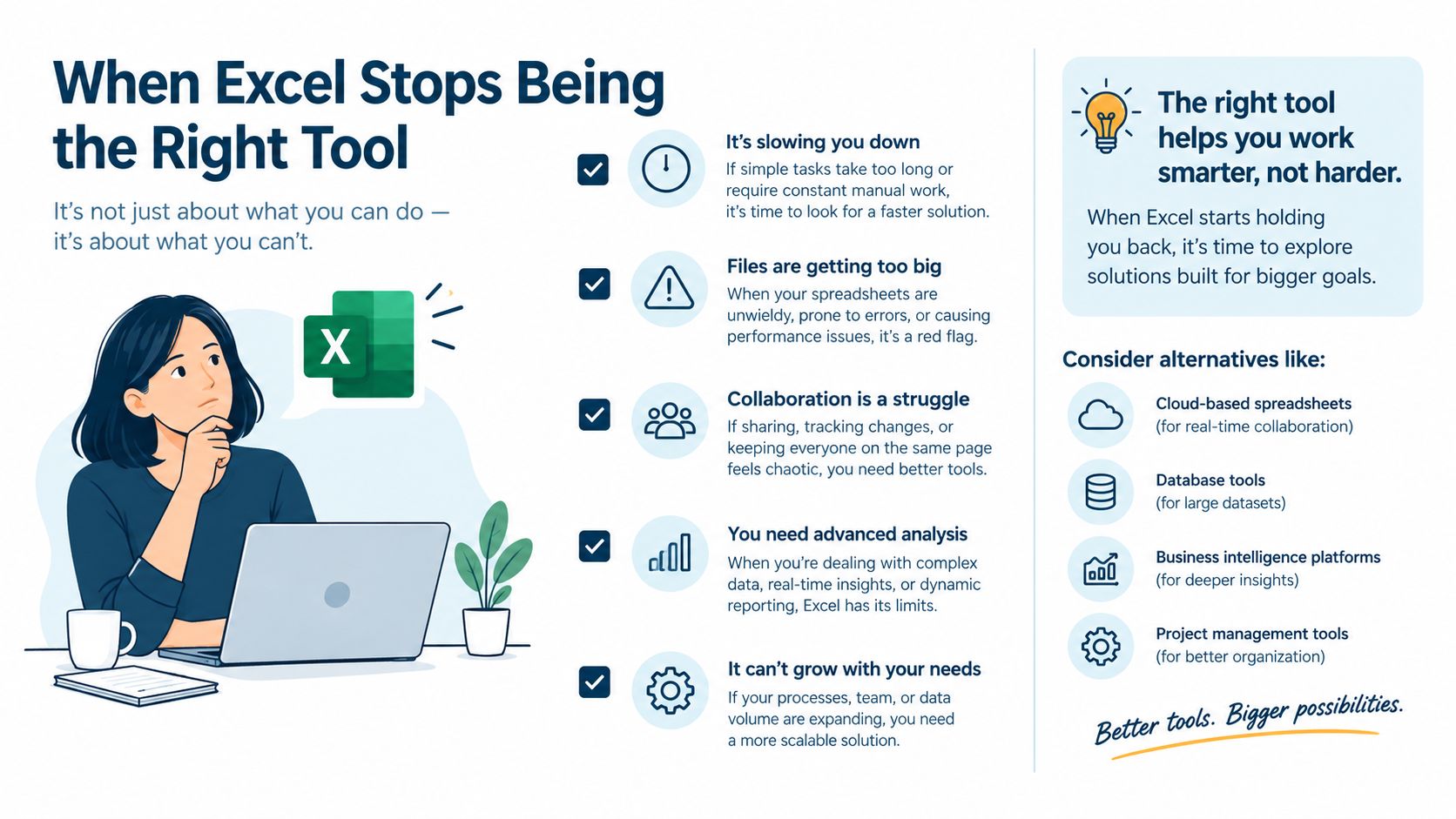
You don't have to throw Excel away. Move daily bookkeeping to a dedicated system, lock historical periods, and keep Excel for budgets, scenarios, custom dashboards, and planning. For a field business, it also helps to compare scheduling and dispatch tools before deciding whether job information belongs in the accounting file, an operations system, or both.
The honest test is simple. If Excel is accurate because one person still watches every detail, it may be working. If accuracy depends on late nights, private knowledge, and repeated repairs, the business has already outgrown the process.
Handing Off, Backing Up, and Building for the Next Person
A good bookkeeping file should survive the owner being unavailable. Ask a blunt question: could a tax preparer, successor, or new bookkeeper open the file six months from now and understand what each number means?
Start with the records someone else will need:
- The chart of accounts: Include account codes, descriptions, and examples of what belongs in each category.
- The current workbook: Keep the live file separate from read-only monthly archives.
- The source documents: Preserve bank exports, statements, receipts, invoices, payroll reports, and reconciliation support.
- The change log: Explain corrections, reclassifications, and unusual entries.
- The written conventions: State how transfers, owner draws, reimbursements, sales tax, and signs are handled.
- The close archive: Keep the completed reconciliation and the reports issued for each period.
Back up the workbook and its supporting documents in more than one protected location. Test that you can restore a file, not just that a backup process says it completed. If a file becomes corrupted, practical file recovery advice from Steel City IT can help you think through safe recovery steps, but prevention is still better than repair.
Your handoff note doesn't need to be long. Explain where the live file is stored, which tabs receive new entries, who reviews the close, how receipts are named, and what remains unresolved. A new person should be able to trace a bank statement line to a transaction, then from that transaction to its supporting document.
That standard changes how you build the workbook from the start. You stop relying on color, memory, hidden sheets, and formulas only you understand. You create records that can be checked without calling you after every row.
If the books have reached that point, professional help doesn't mean starting over. A documented Excel system gives a bookkeeping team a map. The cleaner the map, the faster the handoff and the less time spent rebuilding history.
MyOfficeOps helps small and midsize businesses organize bookkeeping, payroll integration, financial reporting, cash-flow planning, and CFO-level decision support around a clear monthly process. Visit MyOfficeOps to discuss your current Excel file, build stronger controls, or plan a practical handoff to a more scalable system.